
Menu
Become a Reseller
Choose your preferred option to get your reseller panel, contact us, or check our available packages and prices.
 Skip to content
 Install PurchOnTV on Amazon Firestick and compatible Fire TV devices.
Set up PurchOnTV on Android TV boxes and compatible Android-powered televisions.
Set up PurchOnTV on Samsung Smart TV using the recommended IBO Player Pro application.
Set up PurchOnTV on your LG Smart TV using the recommended application.
Set up PurchOnTV on Windows or macOS using the recommended player.
Connect PurchOnTV on compatible Roku devices using the recommended application.
Configure your Formuler device with PurchOnTV.
Configure a compatible MAG box using the required PurchOnTV settings.
Set up PurchOnTV on compatible Enigma2 Linux receivers.
Install PurchOnTV on your Amazon Firestick or Fire TV device.
From your Firestick home screen, open the Amazon Appstore and search for Downloader. Install and open the application.
If Fire TV asks for permission to install apps from Downloader, enable the required permission in your Fire TV settings.
Return to Downloader and select the URL/code field. Enter the following code:
Downloader will open the download destination. Follow the displayed instructions to download the PurchOnTV APK installation file.
When the Android installation screen appears, select Install. Wait until Fire TV confirms that installation is complete.
Open the newly installed PurchOnTV app from your Firestick apps library.
Enter the subscription credentials you received after ordering your PurchOnTV service and complete the login process.
Install PurchOnTV on Android TV, Android TV boxes and compatible Google TV devices.
An Android TV, Android TV box or compatible Google TV device capable of installing Android applications.
Connect your Android TV to a stable Wi-Fi or Ethernet internet connection before downloading the app.
Keep your PurchOnTV account credentials available so you can sign in once installation is complete.
Download the Downloader app from the Google Play Store, open it and enter the PurchOnTV Downloader code.
Use Downloader →If your Android TV includes a web browser, open the direct APK download page and install PurchOnTV without using Downloader.
Use Browser →From your Android TV home screen, open the Google Play Store and search for Downloader.
Install the Downloader application and open it once installation has finished.
If Android TV requests permission for Downloader to install applications, open the displayed settings and allow installation from Downloader.
Open the Downloader URL or code field and enter:
Follow the download page that opens and download the PurchOnTV APK to your Android TV device.
Select Install when the Android installation prompt appears. Wait for Android TV to confirm that installation is complete.
Open PurchOnTV from your Android TV apps and enter the subscription credentials provided with your account.
Launch your Android TV web browser and open the APK download page below.
Open APK Download →Find PurchOnTV in your Android TV app library and launch it.
Use the login information supplied with your PurchOnTV subscription.
Once your account loads successfully, you can browse the content available through the app.
Set up PurchOnTV on Samsung Smart TV using the recommended IBO Player Pro.
A compatible Samsung Smart TV connected to the internet and able to access the Samsung Apps store.
Search for IBO Player Pro from your Samsung TV's app store and install it on your television.
You will need the M3U playlist URL provided with your PurchOnTV subscription.
From your Samsung Smart TV home screen, open Apps and use the search function.
Search for:
IBO Player Pro
Select the app from the search results and install it on your Samsung TV.
Launch IBO Player Pro after installation. The app will display information that identifies your television installation.
Look for your:
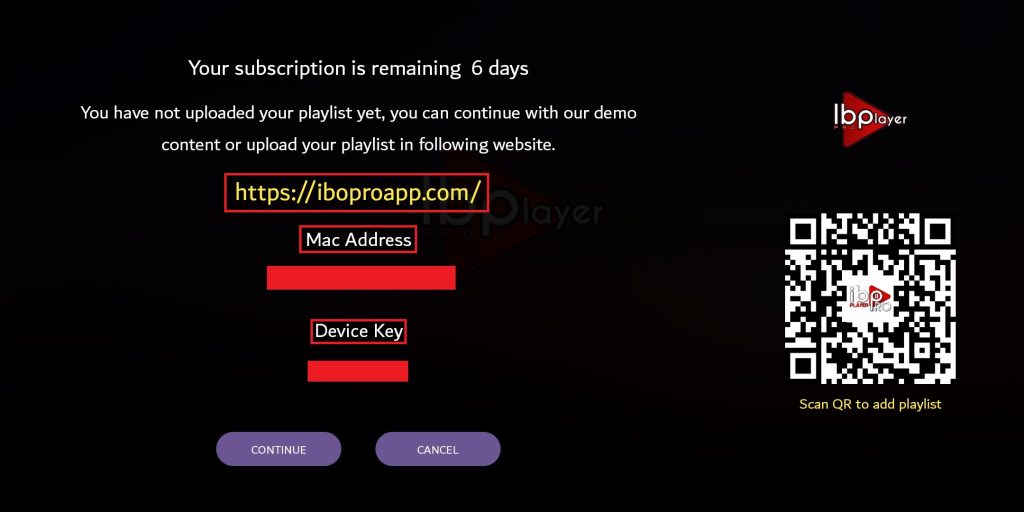
On your phone, tablet or computer, open the official IBO Player device login page.
Open IBO Player Device Login →Enter the MAC Address and Device Key displayed on your Samsung TV.
Carefully enter the same MAC Address and Device Key shown inside the IBO Player Pro application.
Make sure every character is entered correctly before continuing.
Once logged in to your device management page, choose the option to add a playlist.
Enter a name for the playlist such as:
Then paste the M3U URL supplied with your PurchOnTV subscription into the playlist URL field.
Save or submit the playlist from the IBO Player management portal.
Once saved successfully, return to your Samsung TV.
Return to the IBO Player Pro app on your Samsung TV. Use the reload or refresh option if available.
You can also completely close and reopen the app so it retrieves the newly added playlist.
Once your playlist has loaded, the IBO Player Pro home screen will display the available content categories from your PurchOnTV subscription.
Use your IBO Player MAC Address and Device Key to access the playlist management page and add your PurchOnTV M3U URL.
Open IBO Player Device Login → IBO Player Pro does not provide the PurchOnTV subscription itself. It acts as the player used to load your playlist on the television.
Your playlist URL can contain credentials linked to your account. Do not share it publicly or post it online.
Always use the MAC Address and Device Key displayed inside your own IBO Player installation when accessing the playlist management portal.
Set up PurchOnTV on your LG Smart TV using the recommended IBO Player Pro.
A compatible LG Smart TV connected to the internet and able to access the LG Content Store.
Search for IBO Player Pro from your LG TV's app store and install it when available.
You will need the M3U playlist URL provided with your PurchOnTV subscription.
From your LG Smart TV home screen, open the Apps or LG Content Store section and use the search function.
Search for:
IBO Player Pro
If the application is available for your TV model and region, select it and install it on your LG TV.
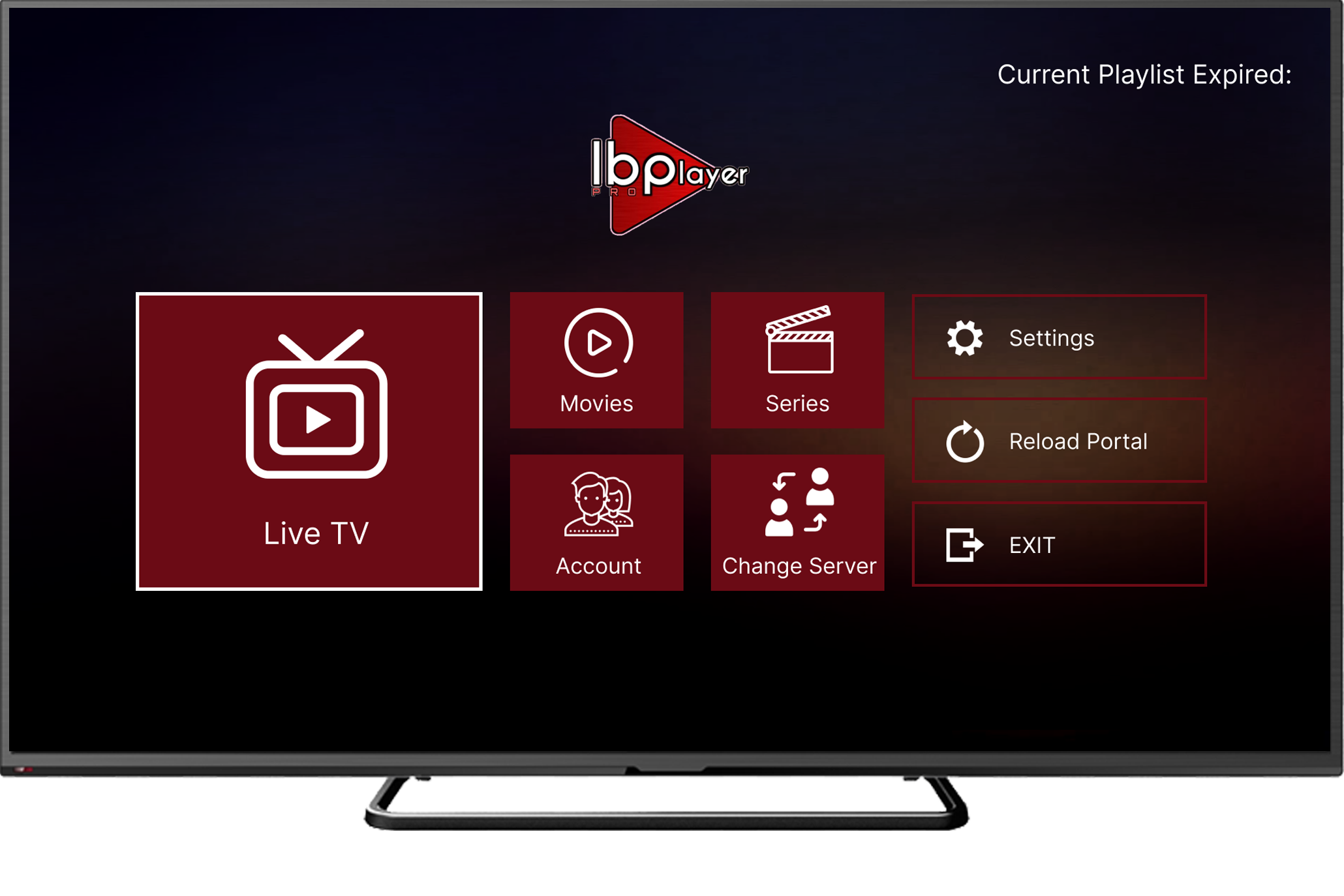
Launch IBO Player Pro after installation. The app will display information that identifies your television installation.
Look for your:
On your phone, tablet or computer, open the official IBO Player device login page.
Open IBO Player Device Login →Enter the MAC Address and Device Key displayed on your LG TV.
Carefully enter the same MAC Address and Device Key shown inside the IBO Player Pro application.
Make sure every character is entered correctly before continuing.
Once logged in to your device management page, choose the option to add a playlist.
Enter a name for the playlist such as:
Then paste the M3U URL supplied with your PurchOnTV subscription into the playlist URL field.
Save or submit the playlist from the IBO Player management portal.
Once saved successfully, return to your LG TV.
Return to the IBO Player Pro app on your LG TV. Use the reload or refresh option if available.
You can also completely close and reopen the app so it retrieves the newly added playlist.
Once your playlist has loaded, the IBO Player Pro home screen will display the available content categories from your PurchOnTV subscription.
Use your IBO Player MAC Address and Device Key to access the playlist management page and add your PurchOnTV M3U URL.
Open IBO Player Device Login → IBO Player Pro does not provide the PurchOnTV subscription itself. It acts as the player used to load your playlist on the television.
Your playlist URL can contain credentials linked to your account. Do not share it publicly or post it online.
Always use the MAC Address and Device Key displayed inside your own IBO Player installation when accessing the playlist management portal.
Installation differs between Windows and macOS. Select the guide for your operating system.
Smarters Pro
Install the dedicated Windows version of Smarters Pro and connect your PurchOnTV subscription using the account information provided after purchase.
Windows Instructions →
UHF – Love your IPTV
Install UHF on a compatible Mac and connect your PurchOnTV subscription using Xtream credentials or an M3U/M3U8 playlist.
Mac Instructions →
Have your computer, internet connection and PurchOnTV subscription details ready.
Follow the corresponding setup guide depending on the operating system installed on your computer.
Connect your computer to a stable Wi-Fi or Ethernet connection before loading your subscription.
Your username, password, server URL or M3U playlist information is provided after purchasing a subscription.
Smarters Pro is the recommended IPTV player for Windows desktop and laptop computers. Install the Windows application and connect your PurchOnTV subscription using the account details provided after purchase.
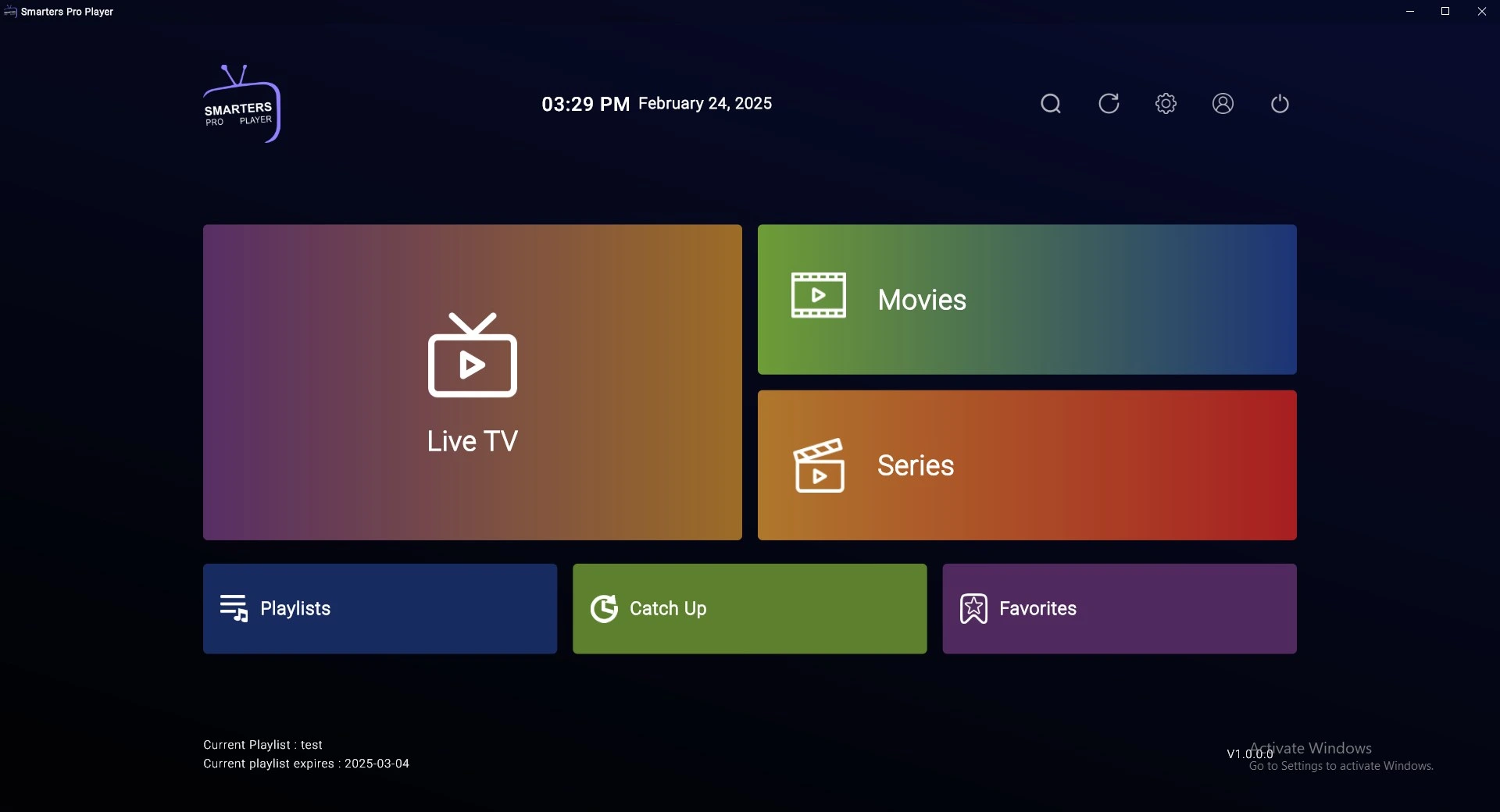
Smarters Pro interface on Windows.
Open your web browser on your Windows computer and visit the official Smarters Pro website.
Open Smarters Pro Website →Find the Windows download option on the Smarters Pro website and download the Windows setup file.
The Windows desktop application is installed using the downloaded setup file.
Open the downloaded setup file and follow the installation prompts shown by Windows.
Once installation is finished, open Smarters Pro from your Windows Start menu or desktop shortcut.
Select the account or Xtream-style login option and enter the subscription information provided to you after purchase.
If your setup uses an M3U playlist rather than a username and password, select the playlist option and enter the M3U URL provided with your subscription.
Playlist Name: PurchOnTV
Save your account information and allow Smarters Pro to retrieve and organize your playlist information.
Once loading is complete, use the Smarters Pro interface to browse the content available with your subscription.
UHF – Love your IPTV is the recommended player for compatible Mac computers. It offers a clean, Apple-focused interface and lets you connect your PurchOnTV subscription using Xtream credentials or an M3U/M3U8 playlist.
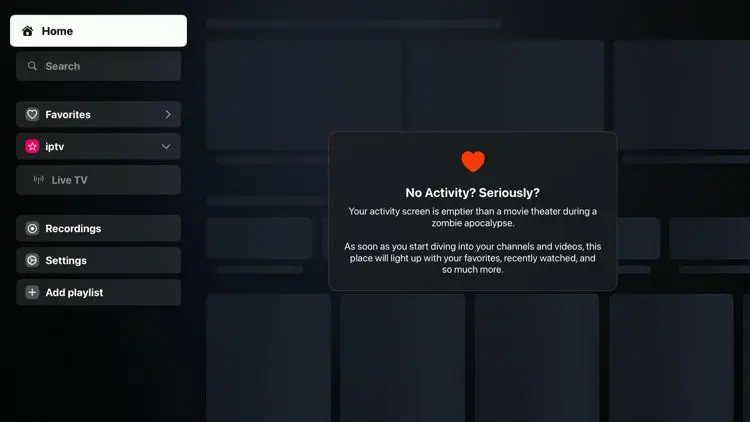
UHF – Love your IPTV interface on macOS.
Open the App Store on your Mac and search for: UHF – Love your IPTV
You can also visit the official UHF website.
Open UHF Website →Install UHF through the Mac App Store on your compatible Mac. Open the application once installation is complete.
Inside UHF, choose the option to add a new playlist or account.
Depending on the credentials supplied with your PurchOnTV subscription, choose an Xtream-style account or M3U playlist.
Recommended when available: Xtream login
Enter the account information supplied with your subscription.
If you received an M3U playlist URL, select the appropriate playlist option and paste the full URL exactly as supplied.
Playlist Name: PurchOnTV
Save the playlist and allow UHF to retrieve and organize the available playlist information.
Once synchronization is complete, use the UHF interface to browse the content available with your subscription.
Your exact credentials are supplied after purchasing a PurchOnTV subscription.
Choose the Xtream or account login method when your subscription contains a username, password and server or portal URL.
Usually the easiest setup method when supported.
Choose the playlist URL method if your subscription includes a complete M3U or M3U8 playlist address.
Paste the full URL exactly as supplied.
The PurchOnTV account information is similar, but the recommended application and installation method differ between Windows and macOS.
| Setup | Windows | Mac |
|---|---|---|
| Recommended Player | Smarters Pro | UHF – Love your IPTV |
| Installation | Windows desktop installer | Mac App Store |
| Account Login | Username / Password / Server | Xtream |
| Playlist URL | M3U where supported | M3U / M3U8 |
| Subscription Credentials | Provided after purchase | Provided after purchase |
Smarters Pro offers a desktop interface designed for Windows computers and is the recommended Windows player for PurchOnTV.
UHF is designed for Apple platforms and supports compatible Xtream and playlist-based connections.
Smarters Pro and UHF are player applications. Your PurchOnTV subscription information is supplied separately after purchase.
PurchOnTV setup instructions for Roku devices.
Contact our support team and we will guide you step by step through the installation and configuration of PurchOnTV on your device.
Contact Support →PurchOnTV setup instructions for Formuler devices.
Contact our support team and we will guide you step by step through the installation and configuration of PurchOnTV on your device.
Contact Support →PurchOnTV setup instructions for MAG devices.
Contact our support team and we will guide you step by step through the installation and configuration of PurchOnTV on your device.
Contact Support →PurchOnTV setup instructions for Enigma2 receivers.
Contact our support team and we will guide you step by step through the installation and configuration of PurchOnTV on your device.
Contact Support →One powerful app for Live TV, Movies and Series — available anytime, anywhere.


 Optimized by Seraphinite Accelerator